Tuesday, May 31, 2011

Clock Out Memos

We've talked a lot lately about using your employee time clock software as an in/out board replacement, especially getting your salaried employees involved so you know where all your employees are at and what they're working on at any given time. It's a great way to improve interoffice communication and efficiency.

When clocking out for the day, Virtual TimeClock allows you to select a memo from a list that updates the in/out board. For example, you may want to use 'Out' or 'Out for the day'. Or when I leave on Friday and I'm going to be out next week, I may want to to pick 'On Vacation' when I punch out for the final time on Friday. It's easy to add more choices if you need to. Go to the Lists menu and choose Out Memos to add or edit the names.

Another option is to use a custom memo. This doesn't become part of the master memo list, but does allow you to update your in/out board status with something a little more specific, like 'Personal Errand - Back by 3PM'. You can create a one-time custom memo from the Memo drop-down list when clocking out. Out memos update the in/out board when clocking out, but aren't permanently tied to a time clock entry like an activity is.

Jeff
Technical Support Team

Friday, May 20, 2011

Personal Time Clocks

Virtual TimeClock has a number of flexible deployment options depending on your office workflow. You may want to deploy as a stand alone time clock kiosk, or network multiple time clocks together to take advantage of the real-time in/out board. I get asked a lot how to set up a personal time clock for each employee. In other words, management only wants the individual worker name to display on each employee's computer time clock. That's easy to do with display groups.

Setting up display groups for a personal time clock is a two-step process. First, create the new display group. Go to the Lists menu and choose Display Groups. Click the + button in the lower left corner of the window to create the new group. It's probably easiest to name the new group after the employee so it's easy to recognize later, like "Jeff's Time Clock". Make sure that same employee is the only one you have selected in the user list and save. Second, assign the display group to the individual employee's computer time clock. On Mac, go to the Virtual TimeClock Pro Client menu and choose Preferences. On Windows, go to the Edit menu and choose Preferences. Select the personal display group you created for the employee from the Display Group drop-down list. Now just repeat the process for your other employees.

Jeff
Technical Support Team

Thursday, May 12, 2011

Keeping Your In/Out Board Current

The advantage of using your employee time clock system as your office in/out board is that the status of each employee is already being recorded as they clock in and out or change activities throughout the work day. Of course, this means no more wallboards or magnets to update to see who's in and who's out. You can also cut down 'on hold' time because phone calls are routed faster when you know where people are at. Best of all, there's no need to purchase or maintain separate in/out board software. The in/out board window of Virtual TimeClock makes a great tool for receptionists and call centers to know when and where to route incoming calls or visitors.

Your employee time clock software will already be keeping track of when people are in, on break, out to lunch, or gone for the day. If you're using activities to keep track of tasks, jobs, or locations, then you'll also know what people are working on or where they're at. And this is all happening as a byproduct of your regular employee time tracking. Here's a quick way to change an employee's out status. Let's say when they left on Friday, they just clocked out but didn't mention they'd be out on vacation Monday and Tuesday. Just select the employee's name in the main time clock window, and from the Actions menu choose Change Out Status. You can pick a standard memo from the list like 'On Vacation' or create a new custom memo that says something like 'On Vacation - Back on Wed'. Now your in/out board is an even more informative and powerful tool.

Jeff
Technical Support Team

Wednesday, May 4, 2011

Upgrading Pro to Network Edition

I hope your business is thriving despite these tough economic times. If you do need to hire more employees, your Virtual TimeClock software will scale right alongside the growth of your business. If you're running the Pro Edition, employee time clock software for a single computer, then you can add additional time clock users at no additional cost. If it's time to start running time clocks on multiple computers, then you'll want to upgrade to the Network Edition. This gives employees the convenience of clocking in and out from multiple locations, and managers the benefit of being able to monitor employees from home or process payroll while on the road.

At some point, there becomes a practical limit to how many employees can clock in and out from the same computer time clock so we've made it easy to go from Pro to Network Edition. The Network Edition will even open a Pro database, so you won't lose any of your old time clock data. You just need to decide which computer will run the time clock server software. This can be your business server computer, or just another workstation. The time clock client software gets installed on all the other computers that need a time clock. If the new time clock server will be installed on the same workstation you were running Pro on, then it will automatically find your Pro database. If it's going to be installed on a different computer, then you'll need to make a backup of your Pro database and restore it on the new server computer using the built-in Virtual TimeClock utilities. The instructions for moving your time clock will help you with this quick and easy process.

Jeff
Technical Support Team

Thursday, April 28, 2011

Military vs. Decimal Time Display

I often talk with customers who use the phrase 'military time' to describe how they want total hours to be displayed on their timecard reports. After a little more discussion, I realize they are using military time to describe something other than a 24-hour clock. Technically, military time refers to the 24-hour clock that keeps time from midnight to midnight. This time keeping convention is typically used in the military or in medicine so there's no ambiguity as to when events occur.

What time clock software users are usually asking for when they want hours to display in military time is to show the hours worked in decimal format. If the symbol separating the hours and minutes is a colon (:) on your employee timecards, then the total hours worked are displaying as hours and minutes. If the symbol separating the hours and minutes is a dot (.), then the total hours worked are displaying in decimal format, which is the most common format for entering employee hours into your payroll software, or reporting the hours to your payroll processor.

Virtual TimeClock uses the same 12-hour or 24-hour clock notation that your computer is set to. However, if you want to change your employee timecards to display totals in decimal format, you can make that change directly in the time clock software. All you need to do is go to the Reports menu and choose Report Writer. Select the employee timecard and click the Format tab. You'll be able to toggle the time display between hours & minutes and decimal hours.

Jeff Morrow
Technical Support Team

Thursday, April 21, 2011

Clearing Employee Schedules

Using shifts and employee schedules is a great way to control employee overtime by setting clock in and clock out restrictions. Shifts can be assigned to each employee for each day of the week. This is great if your employees have fixed schedules. In other words, every Monday Jeff works 8:00 Am to 5:00 PM, every Tuesday Jeff works 10:00 AM to 7:00 PM, and so on. If you have rotating employee schedules, meaning Jeff works 8:00 AM to 5:00 PM this Monday, 10:00 AM to 7:00 PM next Monday, and a different set of hours the Monday after that, then you'll want to wait for a true employee scheduling program that integrates with your time clock system.

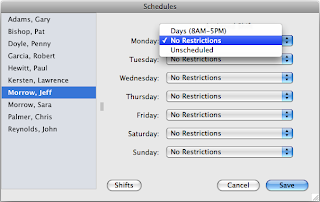
I had a customer last week who wanted to do some testing with shift restrictions to see if they would work in his business environment. He had one employee whose schedule wouldn't work well with the restrictions so he wanted to disable shifts on her schedule. He thought he'd just change each daily schedule to 'Unscheduled' but that means she's restricted from working altogether. Here's how to handle this scenario.

Create a new shift in your Virtual TimeClock software called something like 'No Restrictions'. It really doesn't matter what the name of the shift is, just use something to differentiate it from the other shifts. Make sure no restrictions are set. Now just assign the 'No Restrictions' shift to the user schedule for each day of the week. We'll be adding a way to clear employee schedules in the next release of the software.


Jeff Morrow
Technical Support Team

Thursday, April 14, 2011

Changing Your Time Clock Software Admin Password

The employee time clock software administrator has unlimited access to all time clock program functions. This means a time clock administrator can edit and view hours for any employee, can open any user mailbox, and can view all user wage and employment information. We recommend not sharing the administrative password with anyone because it makes it difficult to use the built-in audit logging features of Virtual TimeClock. The nice thing is that you can have more than one time clock administrator, each with his or her own unique password.

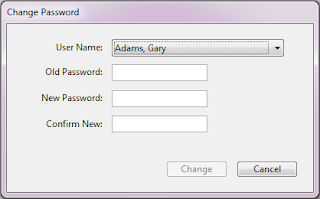
Since all passwords are tied to a particular user account, you'll need to open the Users list window to update the administrator password. An optional way to update your admin password is to go to the Tools menu and choose Change Password. Select your name and enter your existing password, then enter your new password and confirm it.

If you've forgotten your admin password, then contact time clock software support and we'll help you gain administrative access to your employee time clock software once again.

Jeff Morrow
Technical Support Team