It's easy to confuse payroll period end dates with pay days. We talk to a lot of time clock software users that are doing all kinds of gymnastics because their payroll period ends on the 15th and their payroll company needs a 2-day lead time in order for employees to get paid on time. So they collect timecards on the 13th and estimate time for the 14th and 15th. Plus they have to remember to go back and check the 14th and 15th the next payroll period to make sure they didn't overpay or underpay their employees. And heaven forbid that the end of a payroll period falls on a weekend!
There's a real simple solution for all this anxiety and guessing. It's what we do here at Redcort Software. We also use a semi-monthly payroll period, the first period runs from the 1st of the month to the 15th and the second period runs from the 16th to the end of the month (no matter what day that is). However, we get paid on the 5th and the 20th. This means the hours that get reported are the actual hours worked. The payroll company has enough time to process payroll and there's no fancy scheming with a calendar just to make sure everybody gets paid on time.
Jeff
Tier 2 Technical Support
Redcort Software, Inc.
Showing posts with label payroll periods. Show all posts
Showing posts with label payroll periods. Show all posts
Friday, May 31, 2013


Thursday, February 28, 2013
Clocking In Before Payroll Period Is Closed
I had an interesting call from a new customer the other day. He was worried because they hadn't closed the payroll period yet but employees were already clocking in under the new period. I told him not to worry because the time clock software was smart enough to know what period the punch times belonged in.
Remember that closing payroll periods performs two important functions. First, it totals and saves hours and overtime for all workers using the current payroll settings. This is important because wages, overtime, and time deduction rules may have changed. Secondly, closing the period advances the 'Current Period' to the new period dates based on your payroll frequency.
If you've never closed a payroll period, verify your payroll period settings in the Configure window.

Jeff
Technical Support Team
Redcort Software, Inc.
Remember that closing payroll periods performs two important functions. First, it totals and saves hours and overtime for all workers using the current payroll settings. This is important because wages, overtime, and time deduction rules may have changed. Secondly, closing the period advances the 'Current Period' to the new period dates based on your payroll frequency.
If you've never closed a payroll period, verify your payroll period settings in the Configure window.

Jeff
Technical Support Team
Redcort Software, Inc.
Thursday, August 23, 2012
Understanding Payroll Cycles
Virtual TimeClock is pretty flexible when it comes to defining payroll cycles. You can set your payroll frequency (how often you get paid) to weekly, biweekly, semi-monthly, or monthly. This covers the payroll needs for most businesses. Once you pick a frequency and set the current payroll period start date, the end date will be automatically calculated for you. All you have to do is close the period and the current payroll period dates will advance based on the frequency you've set.
It's easy to confuse your payroll frequency with your pay dates. For example, here at Redcort Software our payroll frequency is semi-monthly. The first period runs from the 1st to the 15th and the second period runs from the 16th to the end of the month. However, we get paid on the 5th and the 20th of each month. Every time we close a payroll period, the time clock software knows exactly what dates to move the current period to.
For whatever reason, you may find your business needs a custom payroll cycle. That's no problem with Virtual TimeClock because you can set a user defined payroll period.

There are a couple of drawbacks to using the user defined payroll frequency. First, when you close the payroll period, Virtual TimeClock won't know what dates to advance the current period to, so you'll have to manually change the current period start and end dates. Second, when running timecard reports, the 'Last Period' date range selection won't automatically populate because the time clock doesn't have a static frequency from which to calculate the prior period dates.
Jeff
Technical Support Team
Redcort Software, Inc.
It's easy to confuse your payroll frequency with your pay dates. For example, here at Redcort Software our payroll frequency is semi-monthly. The first period runs from the 1st to the 15th and the second period runs from the 16th to the end of the month. However, we get paid on the 5th and the 20th of each month. Every time we close a payroll period, the time clock software knows exactly what dates to move the current period to.
For whatever reason, you may find your business needs a custom payroll cycle. That's no problem with Virtual TimeClock because you can set a user defined payroll period.

There are a couple of drawbacks to using the user defined payroll frequency. First, when you close the payroll period, Virtual TimeClock won't know what dates to advance the current period to, so you'll have to manually change the current period start and end dates. Second, when running timecard reports, the 'Last Period' date range selection won't automatically populate because the time clock doesn't have a static frequency from which to calculate the prior period dates.
Jeff
Technical Support Team
Redcort Software, Inc.
Thursday, July 26, 2012
Understanding Workweeks
I want to explain the relationship between the workweek setting in Virtual TimeClock and payroll periods.
The workweek start day is a global overtime setting that tells your time clock software when to start calculating weekly overtime. The most common setting for businesses is 'Monday'. That means hours worked for the calculation of weekly overtime starts on Monday and ends on Sunday. Another way to say it is that weekly overtime calculations start over every Monday. Workweeks don't have to coincide with the calendar week. If you need to change when your workweek starts, turn on administration and choose Overtime from the Configure menu. Click Overtime Settings in the top toolbar.
 Your workweek start day may cross payroll periods, which is fine because Virtual TimeClock still keeps track of hours in the current workweek so it knows when you've hit the weekly overtime threshold. For example, if the payroll period ends on Wednesday and you end up working over 40 hours for the week on Thursday, you'll still get paid for weekly overtime in the next payroll period.
Jeff
Technical Support Team
Redcort Software, Inc.
The workweek start day is a global overtime setting that tells your time clock software when to start calculating weekly overtime. The most common setting for businesses is 'Monday'. That means hours worked for the calculation of weekly overtime starts on Monday and ends on Sunday. Another way to say it is that weekly overtime calculations start over every Monday. Workweeks don't have to coincide with the calendar week. If you need to change when your workweek starts, turn on administration and choose Overtime from the Configure menu. Click Overtime Settings in the top toolbar.

Jeff
Technical Support Team
Redcort Software, Inc.
Thursday, February 23, 2012
Reopening Closed Payroll Periods
If a payroll period is closed early, any new time clock entries for the closed period are recorded but not totaled when employee timecards are printed. Which is great because employees can still use the time clock to record their time. So you'll still see all the punch times, but they won't be reflected in the report totals. All you have to do is reopen the payroll period and run your employee timecards again. Then everything will be right as rain.
You also can’t add or edit past timecard entries until the payroll period is reopened. All you have to do is reopen the payroll period, make your edits, and then close the period again. Most of the time, it's just the prior payroll period that needs to be reopened. If you need to reopen a payroll period that goes back a few months, give us a call so we can discuss how that may impact your time clock software.
To reopen a closed payroll period, go to the Tools menu and choose Payroll Period. In the Current Period section, enter the start date of the payroll period you want to reopen. Change the start date back when you're all done.

Jeff
Technical Support Team
Redcort Software, Inc.
You also can’t add or edit past timecard entries until the payroll period is reopened. All you have to do is reopen the payroll period, make your edits, and then close the period again. Most of the time, it's just the prior payroll period that needs to be reopened. If you need to reopen a payroll period that goes back a few months, give us a call so we can discuss how that may impact your time clock software.
To reopen a closed payroll period, go to the Tools menu and choose Payroll Period. In the Current Period section, enter the start date of the payroll period you want to reopen. Change the start date back when you're all done.

Jeff
Technical Support Team
Redcort Software, Inc.
Thursday, January 12, 2012
Employee Timecard Report Dates
Have you ever noticed that when you print employee timecards for payroll that you have to change the current period dates? That's because you haven't been closing your payroll periods.

When printing timecards, Virtual TimeClock will always use the stored totals from a closed payroll period rather than recalculating the totals again. This is important since wages, overtime, and time deduction rules may change. By closing payroll periods, timecards for a closed period retrieve the historical totals rather than calculating hours based on the current settings for each employee. Closing payroll periods also advances the current period based on your payroll settings.
Once all hours for a payroll period have been entered, reviewed, and corrected the payroll period should be closed. Go to the Tools menu and choose Close Payroll Period.

Jeff
Technical Support Team
Redcort Software, Inc.

When printing timecards, Virtual TimeClock will always use the stored totals from a closed payroll period rather than recalculating the totals again. This is important since wages, overtime, and time deduction rules may change. By closing payroll periods, timecards for a closed period retrieve the historical totals rather than calculating hours based on the current settings for each employee. Closing payroll periods also advances the current period based on your payroll settings.
Once all hours for a payroll period have been entered, reviewed, and corrected the payroll period should be closed. Go to the Tools menu and choose Close Payroll Period.

Jeff
Technical Support Team
Redcort Software, Inc.
Thursday, February 24, 2011
Preparing Employee Hours for Payroll
One of the main reasons businesses invest in employee time clock software is to help them cut down on the amount of time and effort spent processing payroll. A good time clock program will automatically total employee hours and overtime based on your business rules. Those hours can then be easily entered or imported into your payroll software, or sent over to your accountant or payroll service. Processing payroll is just one of the steps of closing out a payroll period in Virtual TimeClock. Here are the others:
- Review employee timecards
- Edit employee hours
- Process payroll
- Close payroll period
If you've never processed a payroll period, you'll want to verify your payroll settings first. Go to the Tools menu and choose Payroll Period. The first setting determines the first day of the work week for calculating weekly totals on timecard reports. The second setting determines your payroll period cycle.
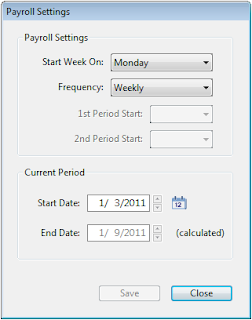
Closing the period will automatically advance the current period starting and ending dates to the next payroll period based on these payroll cycle settings. We've got complete end-of-period instructions as part of the free time clock software resources available on our website.
Jeff Morrow
Technical Support Team
Thursday, October 21, 2010
Adding Old Punch Clock Records
It's not unusual for new Virtual TimeClock software users to want to enter past employee punch times so their new time and attendance software contains all of their historic payroll data for the year. They may want all their time tracking records in the same system, or they may want their year-to-date timecard software totals to be accurate, especially if they're tracking jobs or projects.
You can certainly add past punch clock details, but you'll need to open a custom payroll period first. From the Tools menu, choose Payroll Period. Note your current payroll period settings so you can revert back to them when you're done. Change the payroll frequency to User Defined. Set the period start date to the earliest date you have records for. Set the period end date to the current date and save. Now you can add the historic punches as manual entries. When you're all done, you can reset your payroll settings back to what they should be.
Maggie Hofer
Customer Service Team
Friday, October 15, 2010
Processing Payroll at the End of a Period
Processing and closing payroll periods in Virtual TimeClock can be performed quickly and easily by following a few simple steps.
Review Employee Timecards
The first step is to view or print employee timecards for the current period. Click the Timecard toolbar icon in the main window of your employee time clock software. This will automatically compile a timecard for each individual worker's hours and overtime for the current payroll period.
Edit Employee Hours
Next you'll need to correct missed punch times and add manual entries. You may need to edit an entry to correct a missed punch time, or add a manual entry to give an employee credit for working offsite or for paid time off. Click the Entry Editor toolbar icon in the main window of your payroll time clock software to select entries for editing or to add manual entries.
Process Payroll
Virtual TimeClock offers payroll integration with several popular online and desktop payroll software systems. This allows you to export a specially formatted time clock file that makes your payroll process easier, more accurate, and less time consuming. If you're nor set up for payroll integration, it's still easy to print a report of hours worked for manual entry into your payroll system, or reporting to your payroll processor. From the Reports menu, choose Timecard Summary.
Close Payroll Period
Once all hours for the payroll period have been entered, reviewed, and corrected as necessary the payroll period should be closed. From the Tools menu, choose Close Payroll Period. Closing the payroll period will cause Virtual TimeClock to write the total hours, overtime, and gross wages for the current payroll period to your time clock software database. It will also advance the current payroll period using your payroll cycle settings.
We've written a complete guide to help you prepare your employee hours for payroll processing and start a new payroll period.
Jeff Morrow
Technical Support Team
Friday, August 13, 2010
Reopening Closed Payroll Periods
In order to use your employee time clock software effectively, it's important to understand the role of closing payroll periods. Closing payroll periods performs two functions:
- Virtual TimeClock calculates and writes the total hours, overtime, and gross wages for the current payroll period to your time clock software database.
- Virtual TimeClock advances the current payroll period to the next period using your payroll cycle settings.
Why Closing Payroll Periods Is Important
When viewing or printing timecards, Virtual TimeClock will always use the stored totals from a closed period rather than recalculating the totals again. This is important because wages, overtime, and time deduction rules may change over time. By closing payroll periods, reports for a closed period use the historical totals rather than calculating them all over again using the current settings for each worker which may have changed.
Reopening A Closed Payroll Period
Remember that closing a payroll period causes all of the totals for the period to be written to the database. Therefore, your time clock software will not allow you to add, modify, or delete entries in a closed period in order to preserve the integrity of the totals for that period.
If you need to perform edits to timecards in a closed payroll period, you'll need to reopen the period. From the Tools menu, choose Payroll Period. In the Current Period section, enter the start and ending dates of the payroll period you want to reopen. Save the changes, make your timecards edits, and close the period again.
Jeff Morrow
Time Clock Software Support Specialist
Friday, November 13, 2009
Virtual TimeClock '09 Release 3.1 Update
Virtual TimeClock '09 Release 3 changed the way timecard totals were calculated for closed, open, and future payroll periods. In some instances, future timecard entries were not included in timecard totals unless the payroll period was brought current. Release 3.1 is an important update because timecard entries in future payroll periods are properly included in timecard totals even when the payroll period is not current.
If you've already upgraded your time clock software to Release 3, then you only need to update your Virtual TimeClock Pro and Client software to Release 3.1. You do not need to update your Virtual TimeClock Server software.
Jeff Morrow
Friday, October 30, 2009
Closing Your Payroll Periods
Things have been a bit hectic around here with the successful launch of Virtual TimeClock '09 Release 3, but it's been well worth it with the exciting response we've received to the new features.
With helping some of our customers upgrade their time clock software over the last couple of days, I'm reminded of the importance of closing payroll periods in Virtual TimeClock. Closing a payroll period allows Virtual TimeClock to total and save the hours, overtime, and gross wages for all workers using the current payroll settings, and advance the current payroll period to the next payroll period using your current payroll cycle settings.
If you run timecard reports and see any hours that are not totaled, make sure your payroll period is current.
Jeff Morrow
Subscribe to:
Posts (Atom)

 Posts

