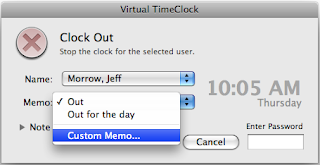
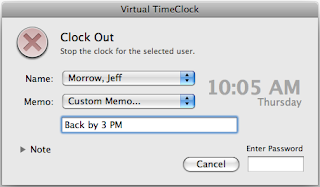
Out memos are a great tool for updating the time clock software in and out board with temporary status changes that let others know why you're clocked out. At it's simplest, when you stop work your status changes to 'Out' and that's all anybody needs to know until you clock back in. But if you want to use the time clock in and out board as a powerful interoffice communication tool, you can create different out memos to handle different scenarios like 'Gone for the day' or 'On vacation'. You can also create one-time out memos to handle different situations like 'Dr. appt. - back by 3:00pm' or 'Client meeting- call me on my cell'. Custom out memos don't become part of the out memo selection list but are used to temporarily let others know what you're doing when you're off the clock.
How to Enable Custom Out Memos
Before you can start using custom out memos, you need to turn them on for the display group. Turn on administration and choose Display Groups from the Configure menu. Select a display group from the list on the left and click User Actions. Select Custom Out Memos from the list of user actions and save.
How to Use Custom Out Memos
Now when you stop work you can pick Custom Memo from the popup list and enter your one-time note to update the in and out board.
Jeff
Technical Support Team
Redcort Software, Inc.
Showing posts with label out memos. Show all posts
Thursday, October 18, 2012
Thursday, June 21, 2012
Clock Out Even Faster
Out memos are temporary notes that are left when an employee stops working and are not included on employee timecards. Multiple out memos are great when using the time clock's in/out board interface but not necessary, especially when clocking in and out from a time clock kiosk with a PIN or Passcode. If you want to streamline the clock out process, then you can remove all but one of the out memos. This will eliminate the extra popup menu when stopping work for the day.
Turn Administration On from the File menu and from the Configure menu, choose Display Groups. select your display group and click Out Memos. Unselect the extra out memos and save.
Congratulations! You've just eliminated an extra step when clocking out.
Jeff
Technical Support Team
Redcort Software, Inc.
Tuesday, May 31, 2011
Clock Out Memos
We've talked a lot lately about using your employee time clock software as an in/out board replacement, especially getting your salaried employees involved so you know where all your employees are at and what they're working on at any given time. It's a great way to improve interoffice communication and efficiency.
When clocking out for the day, Virtual TimeClock allows you to select a memo from a list that updates the in/out board. For example, you may want to use 'Out' or 'Out for the day'. Or when I leave on Friday and I'm going to be out next week, I may want to to pick 'On Vacation' when I punch out for the final time on Friday. It's easy to add more choices if you need to. Go to the Lists menu and choose Out Memos to add or edit the names.
Another option is to use a custom memo. This doesn't become part of the master memo list, but does allow you to update your in/out board status with something a little more specific, like 'Personal Errand - Back by 3PM'. You can create a one-time custom memo from the Memo drop-down list when clocking out. Out memos update the in/out board when clocking out, but aren't permanently tied to a time clock entry like an activity is.
Jeff
Technical Support Team
Thursday, May 12, 2011
Keeping Your In/Out Board Current
The advantage of using your employee time clock system as your office in/out board is that the status of each employee is already being recorded as they clock in and out or change activities throughout the work day. Of course, this means no more wallboards or magnets to update to see who's in and who's out. You can also cut down 'on hold' time because phone calls are routed faster when you know where people are at. Best of all, there's no need to purchase or maintain separate in/out board software. The in/out board window of Virtual TimeClock makes a great tool for receptionists and call centers to know when and where to route incoming calls or visitors.
Your employee time clock software will already be keeping track of when people are in, on break, out to lunch, or gone for the day. If you're using activities to keep track of tasks, jobs, or locations, then you'll also know what people are working on or where they're at. And this is all happening as a byproduct of your regular employee time tracking. Here's a quick way to change an employee's out status. Let's say when they left on Friday, they just clocked out but didn't mention they'd be out on vacation Monday and Tuesday. Just select the employee's name in the main time clock window, and from the Actions menu choose Change Out Status. You can pick a standard memo from the list like 'On Vacation' or create a new custom memo that says something like 'On Vacation - Back on Wed'. Now your in/out board is an even more informative and powerful tool.
Jeff
Technical Support Team
Friday, March 4, 2011
Using Time Clock Software as In/Out Board
One of the powerful features that makes Virtual TimeClock much more than a punch clock replacement is its use as a virtual in/out board. It's easy to tell what activity employees are working on while they're on the clock, when they're at lunch or on break, and when they've left for the day. When you stop work, you'll be prompted to choose an out memo. This updates the virtual in/board by recording if an employee has left for the day or is just out at an appointment. Out memos are temporary and are not included on timecard reports.

Employees can also create a one-time custom memo when stopping work like 'Back by 3 PM'. These custom memos don't become part of the out memo selection list but are a great tool for fully utilizing the in/out board function of your employee time clock software.

Maggie Hofer
Customer Service Team
Subscribe to:
Posts (Atom)