Thursday, August 23, 2012

Understanding Payroll Cycles

Virtual TimeClock is pretty flexible when it comes to defining payroll cycles. You can set your payroll frequency (how often you get paid) to weekly, biweekly, semi-monthly, or monthly. This covers the payroll needs for most businesses. Once you pick a frequency and set the current payroll period start date, the end date will be automatically calculated for you. All you have to do is close the period and the current payroll period dates will advance based on the frequency you've set.

It's easy to confuse your payroll frequency with your pay dates. For example, here at Redcort Software our payroll frequency is semi-monthly. The first period runs from the 1st to the 15th and the second period runs from the 16th to the end of the month. However, we get paid on the 5th and the 20th of each month. Every time we close a payroll period, the time clock software knows exactly what dates to move the current period to.

For whatever reason, you may find your business needs a custom payroll cycle. That's no problem with Virtual TimeClock because you can set a user defined payroll period.


There are a couple of drawbacks to using the user defined payroll frequency. First, when you close the payroll period, Virtual TimeClock won't know what dates to advance the current period to, so you'll have to manually change the current period start and end dates. Second, when running timecard reports, the 'Last Period' date range selection won't automatically populate because the time clock doesn't have a static frequency from which to calculate the prior period dates.

Jeff
Technical Support Team
Redcort Software, Inc.

Thursday, August 16, 2012

Exporting Timecards To Excel

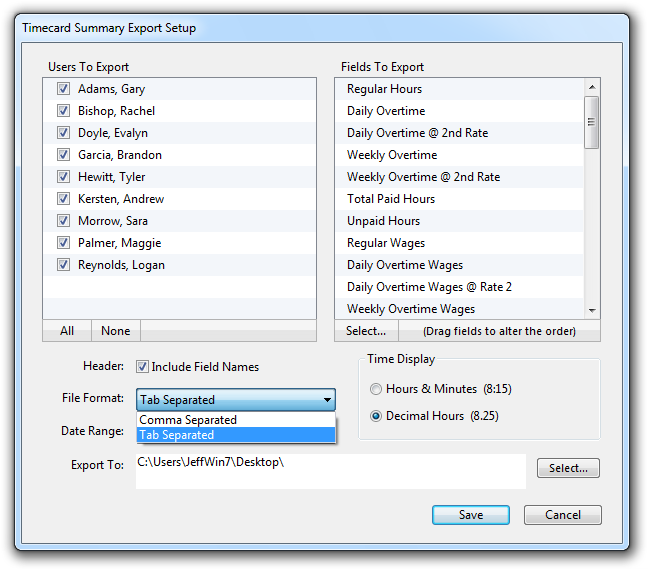
Virtual TimeClock allows you to export your time clock data to a text file for analysis with your favorite text editor or spreadsheet software. Employee hours can also be imported directly into several popular payroll programs that allow time clock integration using a specially formatted export file.

Let's talk about exporting timecard reports into Excel. There are a couple of ways you can open the reports in Excel, depending on the file format you choose when exporting the data.


If it's a tab separated export file
When you right mouse click on the text file, choose Open With and then Microsoft Excel. If Excel is not a choice then you will need to select Choose Program and pick Microsoft Excel from the list.

If it's a comma separated export file
When you right mouse click on the file, choose Rename and then change the .txt extension to .csv. When you double-click the file it should open right up in Excel.

Jeff
Technical Support Team
Redcort Software, Inc.

Thursday, August 9, 2012

Changing Time Clock Display Groups

Changing time clock display groups in Virtual TimeClock '12 Network Edition is easy once you know where to look. You may need to change display groups because you want certain networked time clocks to use a different clock & out interface, follow a different set of security rules, or just list a different group of employees.

User Client
Choose Logout of the Server from the File menu. You'll need to enter an administrator password in order to logout.


Pro Client
Turn on Administration and choose Server Connection from the Configure menu. Click the Logout button.


Once you're back at the Virtual TimeClock Client Login window, you can pick the display group you want to log in to from the popup menu. It looks like this.


Jeff
Technical Support Team
Redcort Software, Inc.
Thursday, August 2, 2012

Time Clock Assistance & Support

A lot of customers tell us that Virtual TimeClock is one of the easiest time clock systems they've ever used. We've worked really hard behind the scenes to make it that way. But sometimes you may need help, like when moving your time clock to a new computer or setting up vacation tracking. Here are our current time clock support options.

Introductory Support
All new software licenses automatically come with 30 days of introductory support. We can help you get the software installed, configured, and make it through a couple of payroll periods.

Annual Support
You can extend tech support out for a full year and receive all software updates by enrolling your licenses in our Software Maintenance and Support program for a small fee. Contact a member of our technical support team for enrollment details.

Pay Per Call
You can also purchase a one-time support incident as needed. Contact a member of our technical support team for pricing and priority assistance. We can hep you decide whether it's more cost effective to purchase a support incident or upgrade your time clock software.

Self Help
Our website has a bunch of self help options. You can download training guides and documentation, view frequently asked questions, and search our current support blog.

If you find that you do need us, Redcort Software has a friendly, knowledgable, California based technical support team that's ready to answer your employee time clock questions. Go to the Help menu of your time clock program and choose Technical Support Resources to contact a member of our technical support team. You can also reach us toll free at 1-888-207-0005.

Jeff
Technical Support Team

Thursday, July 26, 2012

Understanding Workweeks

I want to explain the relationship between the workweek setting in Virtual TimeClock and payroll periods.

The workweek start day is a global overtime setting that tells your time clock software when to start calculating weekly overtime. The most common setting for businesses is 'Monday'. That means hours worked for the calculation of weekly overtime starts on Monday and ends on Sunday. Another way to say it is that weekly overtime calculations start over every Monday. Workweeks don't have to coincide with the calendar week. If you need to change when your workweek starts, turn on administration and choose Overtime from the Configure menu. Click Overtime Settings in the top toolbar.

Your workweek start day may cross payroll periods, which is fine because Virtual TimeClock still keeps track of hours in the current workweek so it knows when you've hit the weekly overtime threshold. For example, if the payroll period ends on Wednesday and you end up working over 40 hours for the week on Thursday, you'll still get paid for weekly overtime in the next payroll period.

Jeff
Technical Support Team
Redcort Software, Inc.

Thursday, July 5, 2012

Add Bonus Days with Leave Carryover

Are you looking for a way to give employees extra vacation or bonus days? Using carryover hours is a great way to handle that situation. Since each leave award category in your time clock software has its own carryover hours, you don't have to worry about affecting the balances of other leave categories when making adjustments.

In this example, Gary has received an extra day of vacation without having to figure out a new calculated award.


You can also use carryover hours to adjust leave balances if you allow employees to borrow against the vacation balance of the next benefit year. All you have to do is enter the carryover hours as a negative amount. And remember to use the Accrued and Used Leave report to check employee leave balances at anytime.

Jeff
Technical Support Team
Redcort Software, Inc.

Thursday, June 28, 2012

Making Time Clock Activities Inactive

You already know Virtual TimeClock is the best time and attendance system for keeping track of employee hours for payroll. But it's also a great tool for tracking time spent on different projects, jobs, or customers. We call them 'Activities'. Activities are easy to add, and you can name them whatever you want. Once a job has been completed, you'll want to remove the activity from the current selection list so it's no longer available when clocking in or starting new activities.


From the Virtual TimeClock Administration Window, click Configure and then Activities to change the status. Don't worry! Activities are still available when running historic reports and can be made active again if needed.

Jeff
Technical Support Team
Redcort Software, Inc.